How to submit a systems or software request
To submit a request pertaining to any of the systems or software we use at Impact Development Fund, click HERE.
Alternatively, you can navigate to this request form through Impact Connect. Simply navigate to the IT page under Other Resources:
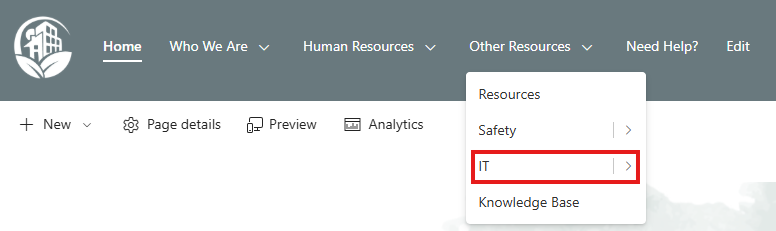
Then click either the link or the image below the Systems and Software Requests header:
Your request will be reviewed and we will reach out to you with any additional follow up questions.
Announcement: Calyx has identified an issue with Calyx Point caused by a recent Microsoft Update. Due to the update, all custom forms will not work currently. Their development team is currently working to resolve the issues. Please click "Learn More" to follow the issue and get updates.
Learn More
Learn More
Related Articles
How to submit a ticket with the IT Helpdesk
To Submit an IT Helpdesk request, please click HERE and fill out the form entirely or click "Submit a ticket" below on any KB page Alternatively, you can also reach the Helpdesk by emailing ITSupport@impactdf.org and including a brief description of ...Laser Pro Support and Guides
The purpose of this article is to draw attention to the location of LaserPro's user guides and other helpful support tools. Finastra Support Portal The Finastra Support Portal can be found HERE (Please note that you must first be added to the portal ...How to get access to Editing/Advanced Features in Adobe Reader/Pro
The purpose of this KB is to inform users how to get access to Editing tools/features within Adobe (Pro). Currently, TeamLogic IT manages our Adobe Licenses and Subscriptions that grant access to Editing tools within Adobe. To get access to editing ...How to request an email address or domain to be whitelisted
The purpose of this article is to help guide users through the steps and process of requesting an email address to be whitelisted. A whitelisted email means that it will no longer be blocked by or spam filter. Method One: Requesting from your daily ...How to Submit a Time Off request
Navigate to Dominion (dominionpayroll.net) Navigate to your Time Card located under Time > Time Card and select "Request Time Off" Fill out the form under "Request Time Off" (Fields beginning with * are required) Hit "Save" DONE!