Troubleshooting Abrigo Application Document Uploads
The purpose of this article is to walk users through the steps of troubleshooting errors with being unable to upload or view the documents page in the Abrigo Application process.
Please have all users who are having issues try clearing their cache/cookies first by following the guide for their browser provider.
External or Internal user(s) unable to view documents or upload new documents
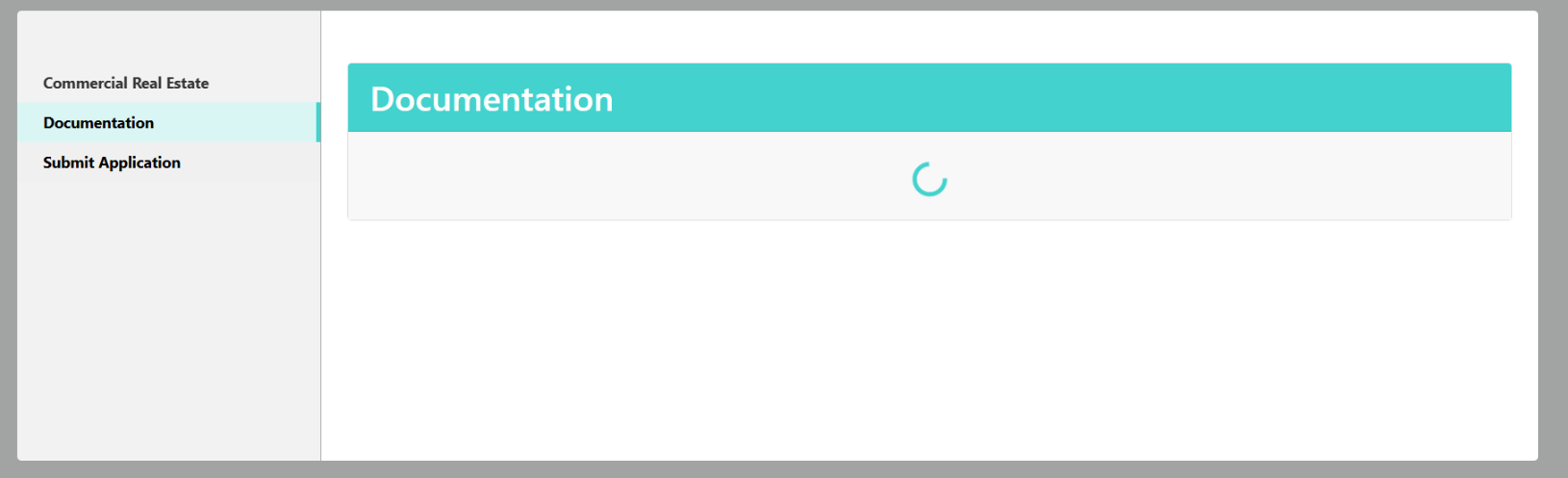
This will likely appear in the form depicted in the image below; a circle loading image but nothing will appear:
- Log into Abrigo Sageworks
- Navigate to the Application tab and select "View Pipeline":
- Scroll down to locate the application which is experiencing the issues, or use the search bar to search for this:
- Click the down arrow next to "View" and select "View Application Details":
- Click the "Applicants" tab:
- Scroll down and locate the user that is having the issues.
- If the user is already a Portal user but the button to the right says "Resend Registration" click this button to re-send them the verification/invitation email and request that they complete the process in the email to gain access:
- If the user is an "Unlinked User" select the dropdown next to "Additional Portal Users who can view and edit" on the appropriate portal user that you wish them to collaborate with and choose the email of the user who is having trouble viewing the documents (If its OK for all unlinked users to view this, select "Select all" instead). Once you complete your selections, choose "Done"
- DONE!
If users still have issues after step 7, please have them try a different browser or have them clear cache/cookies again.
Announcement: Microsoft and TMO are currently experiencing issues with connectivity. This includes dropped connections, applications being unable to load, etc. Please continue to watch the status page by following the "Learn More" button below to get the most recent updates.
Learn More
Learn More
Related Articles
How to search for a document in Zoho Sign
The purpose of this article is to help users navigate searching for available documents in Zoho Sign. Please note that your ability to search and what you can see is dependent on your permissions in Zoho Sign, so if you are missing documents or cant ...How to Export an Abrigo Loan to LaserPro
The purpose of this article is to walk users through the steps for exporting a loan to LaserPro. Exporting Document from Abrigo to LaserPro Log into Abrigo Sageworks Navigate to Administration > Document Preparation: Select "Customer List" or use the ...Laser Pro Support and Guides
The purpose of this article is to draw attention to the location of LaserPro's user guides and other helpful support tools. Finastra Support Portal The Finastra Support Portal can be found HERE (Please note that you must first be added to the portal ...How to use the IDF Learning Portal
The purpose of this guide is to guide users through the steps of logging in and viewing courses in the IDF Learning Portal. If you have not been invited to the IDF Learning Portal, please contact Michael@impactdf.org or Submit a Ticket Navigate to ...Troubleshooting Network Drive issues
The purpose of this guide is to help users troubleshoot issues related to network drive access. Most common issues include inability to access network drives, slow connection/loading of network drive folders and more. Check Network Connection Make ...